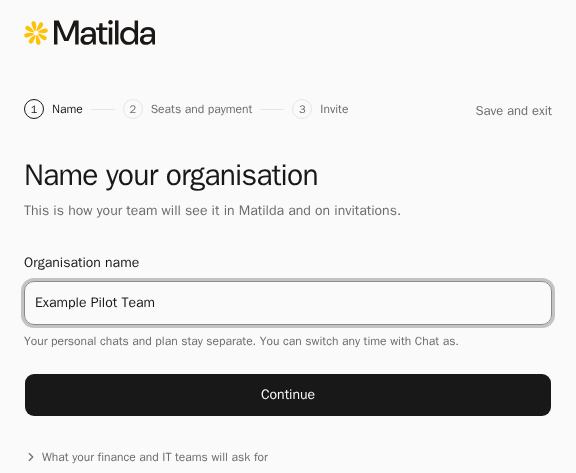
Set up an organisation for your team in three steps: name it, choose seats and pay, then invite people. These instructions cover Matilda on the web.
Before you start
Sign in with the account that should own the organisation. Organisation setup and billing are a limited trial, and your account must be enabled for it. If you see The team plans and billing trial isn’t enabled for your account., ask your Matilda contact about availability. Another browser or another payment attempt won't enable it.
Creating the organisation makes you its owner. Your personal chats and plan stay separate, and you choose who you chat as from Chat as in the account menu.
Create the organisation
- Open the account menu at the bottom of the chat sidebar and choose Upgrade plan. On the Business tab, select Set up your organisation. If you already manage an organisation, you can also choose Create organisation from the organisation switcher in Organisation settings. If you're only a member of another organisation, Upgrade plan isn't in the menu; open Plans instead.
- Under Name your organisation, check or enter the Organisation name, then select Continue. Matilda creates the organisation and you become its owner.
- Under Choose your seats and plan, choose Monthly or Annually if both are offered, then set how many seats you want in the Standard seat and Super seat rows. Order details shows the catalogue subtotal due today.
- Select Continue to payment. Stripe's secure page opens; if Matilda first offers Pay on Stripe, select it. Enter your billing address, then check the seats, billing interval, currency, tax and total before paying. Prices marked including GST where applicable already include applicable GST.
- Return to Matilda to continue setup. Once billing confirms the plan, Invite your team opens. If the plan hasn't appeared yet, wait and check the organisation's Billing page; don't pay again.
- Under Invite your team, add people in Email addresses: type an address and press Enter, paste a list, or select Upload CSV. Keep Give me a Standard seat selected if you want a seat yourself.
- Select Send invitation, or Send followed by the number of invitations. Matilda opens chat as your new organisation and shows a card with next steps.
Everyone you invite joins as a member, without a seat. Once they've joined, give them a seat in Members. You can skip inviting with Skip for now, or Continue to Matilda if you haven't added anyone.
Each step has Save and exit. To pick up where you left off, open the account menu and choose Finish setting up followed by your organisation's name.
If sending invitations asks you to sign in again, use Sign in again to send them, then return to this step in the same browser tab. Matilda keeps your addresses and confirmed invitations. Select Send invitation to retry the outstanding invitation; signing in does not send it automatically. If access has changed, ask an owner to check your role, then reload. Skip for now or finishing setup clears this tab's invitation list.
Prepare your pilot
Complete the tasks that apply to your team:
| Task | What it does |
|---|---|
| Invite people | Adds members and gives administrative roles |
| Assign seats | Gives members the paid access to chat as the organisation |
| Choose and manage your plan | Adds seats or changes your plan |
| Verify your domain | Proves you own the work-email domain |
| Set up SSO | Lets people sign in with their work account, tested before you turn it on |
| Set up Microsoft provisioning | Lets your directory add and remove people |
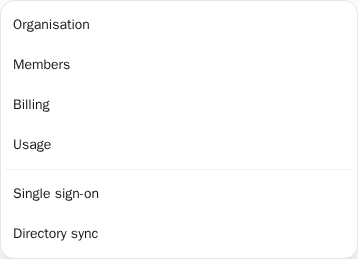
To get to these pages later, open the account menu and choose Organisation settings. Check the organisation name at the top of the sidebar; select it to switch organisations. On a phone, the menu at the top of each page shows the organisation and page name and opens its other pages.
Confirm the pilot can work
Have a pilot member accept their invitation with the exact work email it was sent to, sign in with your company account if you've set that up, and check they have a seat.
To chat as the organisation, open the account menu at the bottom of the chat sidebar and choose it under Chat as. Opening Organisation settings doesn't change who you chat as. Check the name before you send a message; your earlier chats stay in your history.
Check that usage and billing records show the organisation. Before you turn on paid extra usage, read spending controls.
If setup is unavailable
| What you see | What to do |
|---|---|
| You started setting up followed by the name | An earlier attempt is saved. Select Continue; it won't be created twice. |
| We couldn’t confirm your organisation was created | Select Continue again. It won't be created twice. |
| This organisation may already exist | Select Your organisations and check before you continue. |
| Your account can’t create an organisation right now | If your company already uses Matilda, ask an owner to invite you. |
| Ask an owner to finish setting up followed by the name | Only owners and billing admins can choose a plan. |
| Checkout couldn’t start | Nothing was charged. Check your seats and try again. |
| We couldn’t open payment | Your selected seats are saved. Select Try again to continue the same checkout. |
| Your billing account needs an update | Select Contact support so we can resolve the account's billing currency before you buy. |
| Review your existing checkout | Open Billing to finish or close the existing checkout before choosing another plan. |
| You have a checkout in progress | Select Continue payment to finish it. You won't be charged twice. To start again, select Close checkout, then confirm. |
| A checkout is already open | Someone else with billing access started it. They can finish or close it, or it closes by itself within 2 hours. If it's still open after that, contact support. |
| Your last checkout closed | If you already paid or aren’t sure, select Check billing before starting a new checkout. |
| Checkout completed | Check Billing to confirm your plan and seats. You can select Invite your team while confirmation finishes. |
| You can choose a new plan | Your previous checkout is complete. Review the seats for your new subscription, then select Continue to payment. |
| We couldn’t confirm your payment yet | Invitations still work. Select Check again, or Open billing. |
| Not enough seats for everyone | Everyone can still join. Select Add seats to buy more, or give seats later. |
A member can belong to an organisation without being able to manage it; they see Only organisation admins can open these settings. A suspended organisation shows This organisation is suspended in its settings.
Use setup troubleshooting for account mismatches, missing access and changes that didn't finish.