Compare plans, buy seats for an organisation, change your plan or seats after a price review, cancel or resume, and pay what's due, all in Matilda on the web.
Open the right Billing page
For your own plan, open Settings → Billing. For an organisation, open the account menu, choose Organisation settings, then Billing. Organisations are billed separately from your own plan, so check the organisation name at the top of the page.
Owners and billing admins can change the plan, cancel or resume it, pay and manage how the account pays. Billing viewers can see the plan and invoices only; the Payment section tells them that owners and billing admins manage how the account pays.
If you see The team plans and billing trial isn’t enabled for your account, contact support to check availability for your account.
Opening Billing doesn't buy or change anything.
Compare plans
Plans shows Personal and Business plans with their catalogue prices. Review the final total at checkout. Your current Personal plan is marked Current plan, with Manage plan to open Billing.
Check the currency and tax wording beside the prices. AUD means Australian dollars. Prices marked including GST where applicable already include applicable GST; it isn't added on top. Stripe uses your billing address to calculate the tax shown at checkout. Only billing intervals offered for the selected plan can be purchased.
Under Business, Set up your organisation starts a new organisation. If you already own one, you'll see Manage followed by its name, or Your organisations if you own several. Talk to us under Enterprise is for custom terms.
A price in a screenshot is sample data, not a current offer.
Get a Personal plan
- On Plans, select Personal, then Choose with the plan's name. Billing opens with that plan selected.
- The first time, Billing shows You don’t have a paid plan. Select Set up billing. This creates your billing account and doesn't charge anything.
- Check the Plan and Billing interval, then select Continue to payment. Enter your billing address on Stripe's secure page, then check the currency, tax, final amount and billing interval before paying. If Matilda first offers Pay on Stripe, select it.
If you already started a checkout, Billing shows You have a checkout in progress. Select Continue payment to finish it. You won't be charged twice. To start again, select Close checkout, then confirm. If you've already paid, that payment stands.
If the payment page can't open, Matilda retries a temporary connection problem once using the same request. We couldn’t open payment means your selection is still saved: select Try again to continue that checkout. If you see Your billing account needs an update, select Contact support so we can resolve the account's billing currency. A request to sign in again keeps your selected plan; sign in, then continue to payment.
Buy seats for an organisation
An organisation without a plan shows No plan yet under Your plan on Billing, with Choose seats. That opens the seats step of organisation setup, where you choose seats and how often you're billed, then select Continue to payment.
Only one checkout can be open for a plan. While one is open, Billing and the seats step show it instead:
- You have a checkout in progress means you started it. Select Continue payment to finish it, or Close checkout to start again.
- A checkout is already open means someone else with billing access started it. They can finish or close it, or it closes by itself within 2 hours. If it's still open after that, contact support.
If an earlier subscription has ended, Billing shows No current plan. Select Choose seats to choose a new plan for the same organisation. A cancellation scheduled for the end of the current term still has a current plan; use Resume plan before it ends if you want to keep it.
On the secure checkout page:
- Check the seats, billing interval, tax and total on Stripe, including what you'll pay each period after that. If Matilda first offers Pay on Stripe, select it to open the secure payment page.
- Enter your payment details and confirm the subscription on Stripe's secure page. Stripe is Matilda's payment processor.
- Return to Matilda. Once billing confirms the plan, setup opens Invite your team. A payment return alone doesn't confirm the plan; if confirmation is still pending, check Billing before starting another payment.
New members don't get a seat on their own. An owner or seat admin then assigns seats. If the checkout page shows a problem, see checkout problems.
Change the plan or seat quantity
A change can affect what you pay and who has a seat. Check who has a seat in Members before you reduce seats.
- On Billing, under Your plan, select Change plan or seats. For your own plan, it's Change plan.
- For an organisation, choose Monthly or Annually if both are offered, then set the number of each seat type with the minus and plus buttons beside it, or type a number. For your own plan, choose the Plan and an available Billing interval.
- Under When it starts, choose Now, which starts as soon as it's paid, or At renewal, which shows your renewal date. Now is chosen for you when you only add seats or move to a higher plan. Fewer seats, a lower plan or a switch from annual to monthly can only start at renewal.
- Select Review price. Checking a price doesn't change anything.
- Read Your price review: the new number of each seat type with the current number beside it, Starts, Due today, and what you'll pay after that. Price breakdown lists each invoice line, and the review says how long the price is held.
- Select Back to change your selection, or continue to the next step.
- Select Confirm change. This makes the change straight away, with no further confirmation. If it starts now, the amount due today is charged to your payment method.
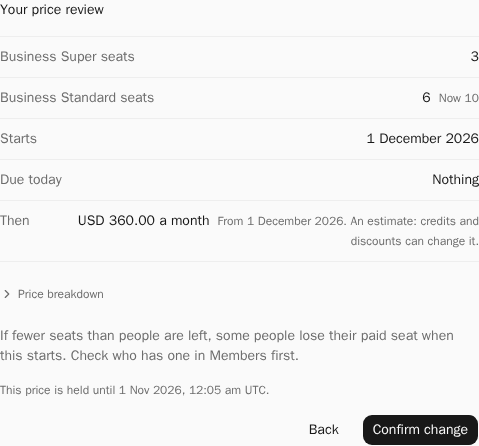
A change that starts now shows on Your plan once it's paid. A change at renewal shows as Changing on the date, with the new seats and price. If Your change is waiting for payment appears, the change takes effect once the invoice is paid.
If fewer seats than people are left, some people lose their paid seat when the change starts. People don't move to a new seat type on their own; assign it in Members.
If the price has expired, or your plan changed after the price was given, select Start again for a new price. When you come back to a price review you didn't finish, you'll see You have a saved price review with Load price review and Start again.
If you see This change can only start at renewal, select Start again, choose At renewal under When it starts, then select Review price. The earlier attempt didn't confirm a plan change. A higher total price alone doesn't make a change an upgrade if it removes a higher-allowance seat.
Cancel, resume or pay
Cancel your plan
- Under Cancellation, select Cancel plan.
- Read the confirmation. It says the date until which you, or your team, keep access, and that the plan won't renew after that.
- Select Cancel plan to cancel, or Keep plan to leave it as it is.
Your plan then shows Ends instead of Renews, and a notice says when your plan ends. Cancelling doesn't promise a refund.
Resume your plan
Before the end date, select Resume plan in the notice that says when your plan ends, then select Resume plan to confirm. Your plan keeps renewing as it is now.
If Resume plan isn't in the notice and Billing shows We couldn’t confirm your last plan change, deal with that first; see recovery. To subscribe again after a plan has ended, start a new purchase.
Pay what's due
When an amount is owed, Payment shows Amount due with Pay now. An invoice marked Due has Pay in its row. Both open Stripe's secure payment page.
Payment method and invoices
Under Payment, Manage opens Stripe's secure page, where you update how you pay. Renewals and usage credit are charged to that payment method. Invoice history under Invoices opens Stripe's page for your invoice history.
To save or print one invoice on the web:
- Find the invoice under Invoices, checking its date and total.
- Select Download in its PDF column. A new tab starts the PDF download from Stripe; your Billing page stays open.
- Find the PDF in your browser's downloads and open it to view or print it. You can close the download tab. If your browser opens the PDF directly, use its PDF controls to save or print it.
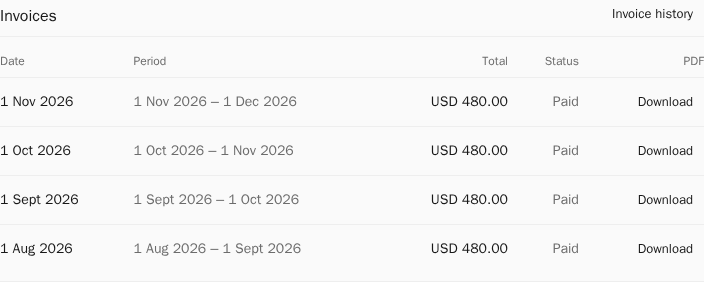
Owners, billing admins and billing viewers can download invoices. A draft shows Not finalised until Stripe finalises it. If the PDF cannot open, select Try again in its tab. Owners and billing admins can also open Invoice history in Billing. If you are a billing viewer or your access changed, ask an owner or billing admin for help. Treat downloaded invoices and their links as private billing information.
If the page doesn't open, Billing names what failed, such as Couldn’t open payment management, with Try again.
If a payment or change didn't finish
If Billing shows We couldn’t confirm your last plan change, it may already have gone through. Look at Your plan first. Select Check status to check the change, or Clear to remove it from this browser. Clearing doesn't undo a change that went through.
After you pay on Stripe's own page, Billing shows Confirming your payment until billing records it. This usually takes less than a minute, and the page updates when you come back to it.
If you left a payment page open, or your result is unknown, don't pay again. Check its status first. Billing troubleshooting covers missing seats, unconfirmed payments and access checks.