Set up SAML single sign-on so people can sign in to Matilda with their work account from your organisation's identity provider. These steps cover Matilda in a web browser.
If your organisation already uses SSO and you want to sign in, follow Sign in with your company account instead.
Before you start
You need to be an owner or identity admin of the organisation. Other roles see You don’t have access to Single sign-on when they open the page, with the roles that can open it.
You also need permission to change DNS for your work-email domain, and to create and assign a SAML app in your identity provider. Choose a pilot work account that you can assign to that app.
If you haven't created the organisation yet, start with Set up your organisation. Keep an owner account that can still sign in while you set up SSO, and test before you require it. Membership, roles and paid seats are managed separately from sign-in.
Find your SSO settings
- Open the account menu at the bottom of the chat sidebar and choose Organisation settings. The menu shows this only if you administer an organisation.
- Check the organisation name at the top of the sidebar. To change it, select the name and choose another organisation under Organisations.
- Under Identity, select Single sign-on. On a phone, use the menu at the top of the page, which shows the organisation and page name, and choose Single sign-on.
Until single sign-on is on, the page shows a status line and four steps: Verify your email domain, Connect your identity provider, Test sign-in and Turn on. Finished steps are ticked with a short summary, and the step you're on is open.
Verify your work-email domain
If Verify your email domain is the open step, select Verify a domain. It takes you to the Domains section of the Organisation page. Follow Verify your work-email domain, then come back to Single sign-on.
When the step is done it shows which domains are verified. Verifying a domain doesn't turn on SSO by itself.
Connect your identity provider
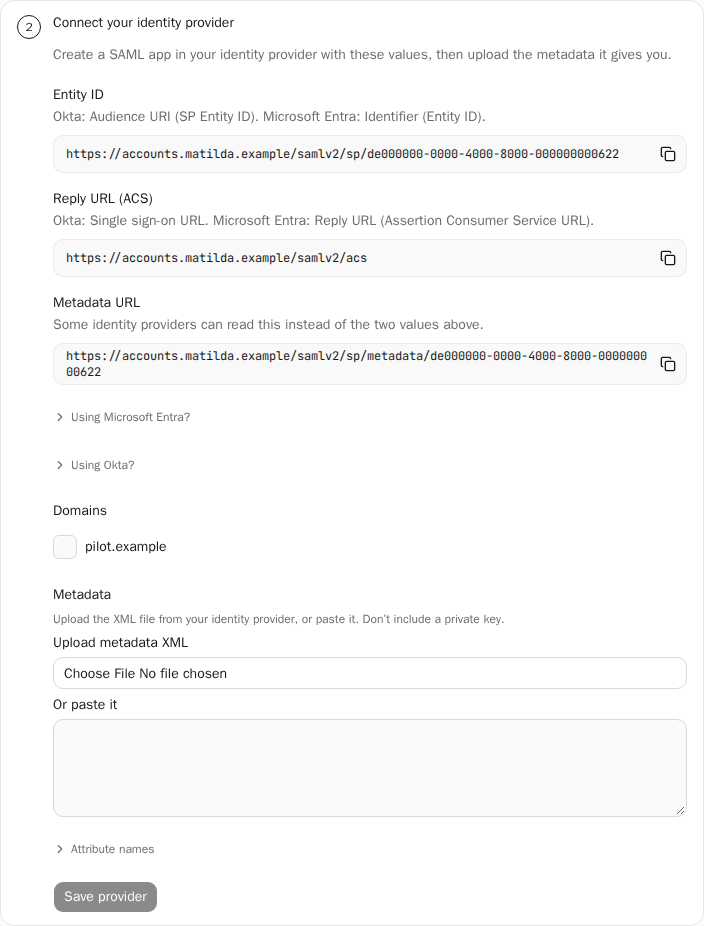
- Under Connect your identity provider, copy Entity ID and Reply URL (ACS). Each field has a copy button and a hint with the matching field name in Okta and Microsoft Entra. Create a SAML app in your identity provider with these exact values. Some providers can read Metadata URL instead.
- Assign your pilot work account to the app, and set up the work-email and user ID claims. For Microsoft Entra, see Configure Microsoft Entra claims. For Okta, send the work email and a stable user ID as attributes, and a group attribute if you use group roles. You name them, so note the names for step 6.
- Download the app's SAML metadata XML from your identity provider.
- Back in Matilda, under Domains, select the verified domains this connection covers.
- Under Metadata, select Upload metadata XML and choose the file, or paste the XML into Or paste it. The file must be under 64 KB. Don't include a private key.
- If your identity provider uses different claim names, as Okta does, open Attribute names and enter the exact names it sends for Email, User ID and Groups (optional). The Microsoft Entra names are filled in, and Matilda matches each name exactly.
- Select Save provider. Saving doesn't change anyone's sign-in yet.
- Wait about a minute. The status line reads Preparing your connection. This takes about a minute. Then choose Continue setup. The page doesn't move on by itself.
- Select Continue setup. When the connection is ready, the status line reads Ready to test.
If you select Continue setup too soon, nothing goes wrong and the status line stays the same. Wait a little longer and select it again. If the status line already reads Ready to test. after you save, there's nothing to wait for.
The screenshot uses example data. Copy the values from your own organisation.
Configure Microsoft Entra claims
The Using Microsoft Entra? note on the page gives the short version. Here are the full settings.
- In Microsoft Entra, open the enterprise application for Matilda and choose Single sign-on, then SAML.
- Under Basic SAML Configuration, set Identifier (Entity ID) to Matilda's Entity ID and Reply URL (Assertion Consumer Service URL) to Matilda's Reply URL (ACS). Save.
- Assign your pilot under the application's Users and groups.
- Open Attributes & Claims, select Edit and check the claims below.
- From the SAML Certificates section, download Federation Metadata XML. That file, not the raw certificate, is what you upload to Matilda.
| Claim | Source in Entra | Name in Matilda's Attribute names |
|---|---|---|
| Unique User Identifier (Name ID) | Persistent format, user.objectid |
Not needed |
| emailaddress | The person's work email, often user.userprincipalname for cloud-only accounts |
Email: http://schemas.xmlsoap.org/ws/2005/05/identity/claims/emailaddress |
| objectidentifier | user.objectid |
User ID: http://schemas.microsoft.com/identity/claims/objectidentifier |
| groups, if you use group roles | Group object IDs, not names | Groups (optional): http://schemas.microsoft.com/ws/2008/06/identity/claims/groups |
Use the same work email that Matilda invitations and directory sync use. A cloud-only account without a mailbox can have an empty mail field, so check which field holds the address people actually use. Keep tenant security and MFA on.
Microsoft's SAML application setup guide and claims guide explain the Entra screens. Use your own Matilda values, not the samples in Microsoft's guides.
Test a work account
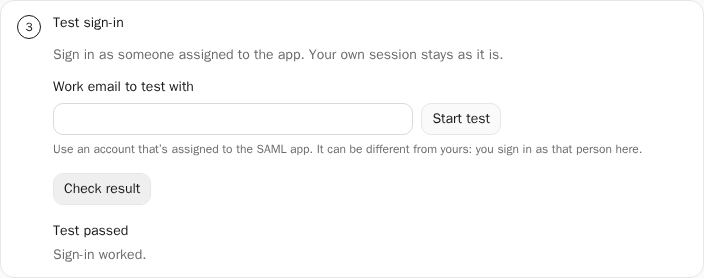
- Under Test sign-in, enter the pilot account in Work email to test with. Use an account that's assigned to the SAML app and is on one of the connection's domains. It can be different from your own account: you sign in as that person in this browser.
- Select Start test.
- Select Open sign-in page. It opens in a new tab, so this page stays open. The link only works in this browser, so don't send it to the test person, and finish by the time the page shows.
- Sign in as the test person at your identity provider and finish its usual checks.
- Come back to the Matilda tab. Matilda checks the result when you return. Select Check result to check again.
When it works, you'll see Test passed and the step shows the date it passed. Other results:
- Not finished yet: finish signing in in the other tab, then check again.
- Test expired: start another test.
- Couldn’t check the result: try again. This doesn't mean sign-in failed.
- A problem such as The work email didn’t match a verified domain: open How to fix this for the steps, fix it, then start a new test. It shows the latest problem on the connection, which may be someone else's sign-in.
- You’ve started a lot of tests. Wait a while, then try again.: there's a limit on how many tests you can start, so wait before starting another.
A test doesn't turn on SSO. Your own session stays as it is, and the test person doesn't join the organisation or get a seat. To test again later, select Test again. If you change the provider after a test, the page says Your provider changed since the last test. Test again first.
This example shows a simulated passed test in the real Matilda interface. Check your own result before you continue.
Turn on single sign-on
Turning on SSO changes how people on the selected domains sign in. Keep an owner who can still sign in, and decide how people should join first.
- Under Turn on, choose How people join:
- Invitation only: only people you invite can join. Signing in with SSO doesn't add anyone new.
- Automatically at sign-in: anyone on your verified domains who signs in with SSO joins as a member.
- Synced from your directory: people join by invitation, including invitations sent by directory sync. Signing in with SSO doesn't add anyone new. Choose it once directory sync is set up. You can't choose it if directory sync isn't available to your organisation.
- Select Turn on single sign-on.
- Check the domains, provider and joining rule in Turn on single sign-on?, then select Turn on.
- Wait for the status line to read On. with your domains and provider. If it stops at Turning on., the page shows Needs attention and a Continue turning on button. If another admin started turning it on, only they can continue; the page says to ask them to finish, or start over.
- Have a member sign in with their work account to check it works.
People who join with Automatically at sign-in aren't removed when they leave your company; use directory sync or remove their access. Requiring SSO, group roles, changing how people join and certificate updates are covered in Manage SSO requirements and recovery.
To set up the connection again before SSO is on, select Start over and confirm. Nothing has been turned on at that point. The old details stay under Previous provider for reference.
Check Microsoft Entra error AADSTS50011
For SAML sign-in, Microsoft documents AADSTS50011 as a mismatch between the
AssertionConsumerServiceURL sent in the request and a Reply URL registered in
Microsoft Entra. The URL in that error comes from the actual request. See
Microsoft's SAML error guide.
If you've already compared and re-copied the values, check the failed request:
- Read the URL in the Microsoft error from the current failed test. Keep it private; don't paste the error page or a SAML trace into a public chat.
- Compare it with the Reply URL (Assertion Consumer Service URL) registered on the Entra enterprise application.
- If they differ, ask your identity administrator to set Entra's Reply URL to Matilda's Reply URL (ACS), keeping any other working reply URLs. Then start a new test.
- If they match for that same attempt, note the error code and the time with its time zone for your identity administrator or support contact.
The error code alone doesn't point to Matilda's domains, signing certificate or directory sync, so avoid changing those as a guess. A Microsoft error page doesn't mean the test passed; come back and select Check result.
If setup or a test does not complete
| What you see | What to do |
|---|---|
| We couldn’t confirm your last change | The change may already have gone through. Check what the page shows, then select Try again or Discard. Trying again won't apply it twice. |
| Choose a domain and add the metadata first. | Select at least one domain under Domains and upload or paste the metadata. |
| That metadata couldn’t be read. Download it again from your identity provider. | Download the metadata XML for this SAML app again. Use the app's own metadata, not the provider's whole catalogue. |
| Enter a work email on one of this connection’s domains. | Use the test person's full work email, on a domain you selected under Domains. |
| The work email didn’t match a verified domain | Sign in as the test person's work account, not an admin or personal one. Check the email claim your provider sends. |
| The Reply URL didn’t match or The Entity ID didn’t match | Copy Reply URL (ACS) and Entity ID from Matilda into your identity provider exactly, then test again. |
| Microsoft Entra shows AADSTS50011 after you compared the values | Compare the URL in the failed request with the registered Reply URL. |
| The signing certificate didn’t match | Upload current metadata from your identity provider, then test again. |
| Test expired or Not finished yet | Start a new test, or finish signing in and select Check result. A provider error page isn't a passed test. |
| We couldn’t read the latest details from your identity provider. Try again in a minute. | Wait a minute and select Check result again. It doesn't say why sign-in failed. |
| Single sign-on isn’t available for this organisation yet. | Ask your Matilda contact whether SSO is available for your organisation. |
If you need help, give the step that failed, the message shown and the approximate time with its time zone. Keep passwords, tokens, raw SAML responses and sign-in callback URLs out of support messages.