Find the stage that failed, inspect its current state and recover the original decision without repeating a purchase or losing access.
Start with account and organisation
Check the signed-in email, the organisation name at the top of the Organisation settings sidebar, your role and the page title. A company provider administrator account may differ from the work account invited to Matilda. Keep your administrator session open when testing a pilot account.
Organisation creation and billing are a limited trial. The team plans and billing trial isn’t enabled for your account means the current account is not enabled. Ask your Matilda contact about availability; repeated sign-in or payment attempts do not enable it.
Controls your role can't use are hidden rather than greyed out. A settings page your role can't open shows You don’t have access to followed by the page name, and lists the roles that can open it. A member who doesn't administer anything sees Only organisation admins can open these settings. Missing controls can also reflect organisation status, plan or feature availability. Pages reload their information when you come back to the tab, so check again before assuming a service failure.
Invitation or membership is missing
Use invitation recovery. An unavailable invitation does not prove it expired. Compare the invited and signed-in emails, then have an authorised administrator inspect the original pending list and existing membership.
A successful company sign-in can still need an invitation, account verification or directory sync. Someone an administrator removed isn't restored by signing in again; an administrator needs to select Restore access in Members.
Company sign-in or provisioning fails
For sign-in, use the exact work email on the Matilda login page. Choose the assigned work account at your provider. Your administrator should check application assignment, verified domains, SAML email/immutable-ID claims, current metadata and certificate expiry.
For the administrator test, come back to the Single sign-on tab; Matilda checks the result, and Check result checks again. Opening the provider's sign-in page doesn't confirm a passed test. If a problem is shown, open How to fix this and follow it before you start another test.
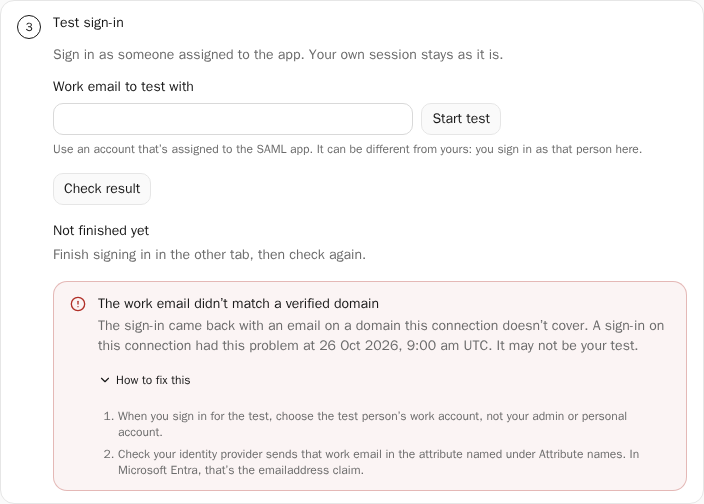
For directory sync, check the failed user or group export in Microsoft’s provisioning logs. Test Connection passing doesn't mean the export worked. Check directory sync mappings and recovery before you replace a working token.
Keep MFA, tenant security and required-access recovery in place. Use the tested recovery owner for an IdP failure; do not disable broad security policy as a troubleshooting shortcut.
Payment or billing does not match
| Symptom | First checks |
|---|---|
| We couldn’t open payment when choosing a plan or seats | Your selection is saved. Select Try again to continue the same checkout. |
| Your billing account needs an update | Select Contact support so we can resolve the billing currency on your account. |
| Review your existing checkout | Open Billing to continue or close the existing checkout before choosing another plan. |
| Paid, but the plan or seats haven't changed | Open the organisation's own Billing page. While it shows Confirming your payment, wait a minute and come back to the page. Don't pay again. |
| Paid for usage credit, but the balance hasn't changed | Open the same Usage page you paid from. Credit is added once the payment clears. Don't pay again. |
| You have a payment in progress on Usage | Select Continue payment to finish the same checkout. You won't be charged twice. |
| You have a checkout in progress on Billing | Select Continue payment to finish the same checkout. You won't be charged twice. To start again, select Close checkout, then confirm. |
| A checkout is already open on Billing | Someone else with billing access started it. They can finish or close it, or it closes by itself within 2 hours. If it's still open after that, contact support. |
| We couldn’t confirm your last plan change on Billing | Look at Your plan first, then select Check status. Clear only removes it from this browser. |
| Seats bought, but a member can't use them | Check that the person is an active member, has a seat assigned in Members, and has chosen the organisation under Chat as. |
| Promotional credit didn't add to usage credit | Promotional credit comes off invoices, not usage credit. Check the credit left under Promotional credit and your invoices. |
| The price review expired or your plan changed | Select Start again in Change plan or seats for a new price. |
| Usage credit available, but extra usage is blocked | On Usage, check that Usage credit is on under Spending limits, the product is ticked, and the monthly, per-request and member limits aren't reached. |
| An invoice shows Due | Select Pay in its row, or Pay now under Payment. |

Use plan recovery, usage credit recovery or promotional credit recovery for the original action.
Checkout shows a problem
The secure checkout page says what happened and offers the next step. Use the button it shows rather than starting a new purchase.
| Message | What to do |
|---|---|
| Stripe’s payment form didn’t load | Something is stopping js.stripe.com from loading, often an ad blocker, a privacy extension, a VPN or a work network. Allow Stripe, then select Try again to load the same checkout. If you already tried paying, check Billing first. |
| Stripe’s payment form is taking too long | Check your connection, allow Stripe in any blocker, then select Try again. |
| We couldn’t reach checkout | Check your connection, then select Reload. If you already tried paying, check Billing before making another payment. |
| Your payment didn’t go through | Your card was declined, or the details need checking. Check them or try another card. You haven't been charged. |
| We couldn’t confirm your payment | Your payment may have gone through, so don't pay again yet. Select Check status, or look in Billing in a minute. |
| Payment received | Stripe accepted the payment and it can take a minute to show. You don't need to pay again. Select Check status later. |
| Your payment is processing | Some payment methods take longer. You don't need to pay again. |
| Checkout completed | The checkout session has finished. Return to Billing to confirm the plan or to Usage to confirm credit. Don't pay again while it is being confirmed. |
| This checkout has closed | This checkout can't take another payment. Return to Billing or Usage and check any earlier payment before making another purchase. |
| This checkout can’t be opened | Go back and check Billing before making another payment. Contact support if it keeps happening. |
| Still preparing your checkout | Select Reload in a moment. |
| This checkout needs review | Contact support before you start another checkout. |
| Checkout couldn’t load on this page | This is a problem on Matilda's side. Check Billing before making another payment, and contact support if it keeps happening. |
| This checkout is being closed | Wait for Billing to confirm the outcome. A payment already in progress may still complete. |
| Pay on Stripe | This checkout opens on Stripe's secure page. Select Pay on Stripe. |
The back button names where you started: Back to billing, Back to usage or Back to seats. A completed checkout or a request to close one can offer Go to billing to check its outcome. If checkout couldn't start, follow the message on the seats step. A lost reply doesn't prove the request failed; keep the original checkout and selection when retrying.
A request timed out or asks for sign-in
A lost response may follow a completed action. In Organisation settings, a change without a reply shows We couldn’t confirm your last change. Check what the page shows, then select Try again to resend the same change; it won't be applied twice. Signing in or reloading doesn't send the change for you.
Keep the original account, payer and selection. Discard, and Clear for a plan change on Billing, only remove that browser's saved copy of the change. They don't reverse a purchase, remove anyone's access or prove that the change failed.
If a paid Chat request was submitted, use Paid requests to check → Check status. Do not send the same message again to determine its outcome.
For API key issuance, a lost one-time secret cannot be retrieved. Review keys and replace deliberately.
Collect safe details for support
For role or provider issues, start with your organisation owner or identity administrator. For Matilda help, open the Matilda support page, which provides the current support email. Send the failed step, visible guidance, approximate time with its time zone, organisation/payer reference and any safe operation, invoice or Microsoft correlation reference.
For billing, include the intended amount/currency and current state. For activity, include the UTC range. Share only the details needed for the issue, removing unrelated personal information from screenshots.
Keep passwords, full keys, provisioning tokens, card details, session cookies, raw SAML assertions and callback URLs private. Do not resend a payment or replace a working credential to manufacture a new error.