Find your current allowance, recorded activity, monthly usage statements and invoices, and understand what each one measures.
Choose the record
| Record | Where to find it | What it covers |
|---|---|---|
| Current allowance | Settings → Usage, or Usage and limits in the account menu | What's left of the included allowance for whoever you chat as |
| Account activity | Settings → Usage → Account activity | Your own requests and tokens, whoever you chat as |
| Organisation activity | The organisation's Usage page, under Activity | Requests and tokens across the organisation |
| Usage statements | Usage statements on the organisation's Usage page, or on Settings → Usage for your own | What usage credit paid for each closed month |
| Invoices | Invoices on the Billing page | Each invoice with its latest status |
| Invoice downloads | Download invoices on the Billing page | Invoices in Stripe's secure portal |
To open an organisation's pages, open the account menu and choose Organisation settings. Its Usage page is for owners, billing admins and billing viewers. Its Billing page shows invoices to the same roles. A seat or an identity role alone doesn't give access to either.
Your account activity stays personal when you chat as an organisation; it isn't an organisation report.
Read allowance and activity
- Open Settings → Usage. Current allowance names who you're chatting as and shows what's left. It reloads when you come back to the tab; Usage and limits in the account menu also has Refresh usage.
- Under Account activity, choose 7 days or 30 days. The dates covered are shown beside the choice.
- Read Requests and Total tokens, the requests-per-day chart and Activity by day.
- For more, expand More token detail, Measurement coverage or About these numbers.
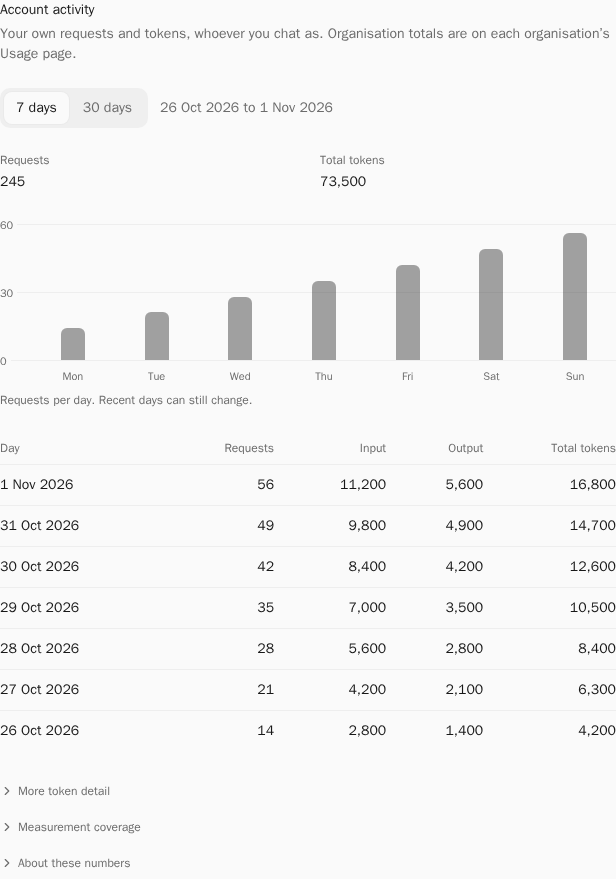
For organisation totals, open the organisation's Usage page and find Activity. It has the same 7 days and 30 days choice.
Days run midnight to midnight UTC, and the latest days can still change. These are counts, not charges. A dash means a day wasn't measured, not zero, and token types overlap, so don't add them up to work out a bill.
If activity doesn't load, you'll see We couldn’t load your activity. Select Try again, or Sign in again if your session ended. A failed load isn't zero activity.
Open a usage statement
- On Usage, find Usage statements. Each closed month shows Requests charged, when it Closed and the Amount.
- Select View for the month.
- Read the statement: how many requests were charged, when the month closed, the Total, and each request's Product and Amount. A request that ended without a charge shows No charge.
- Use More requests and First requests to page through requests, and Older statements and Latest statements to page through months.
- Select Done to close it.
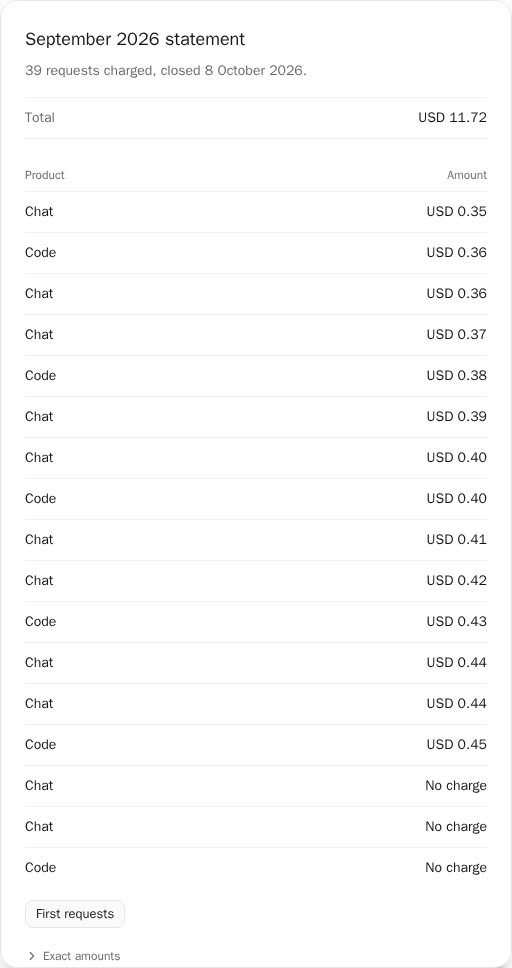
Requests are charged in fractions of a cent, so statement amounts are rounded. Exact amounts shows the unrounded figures and total.
A statement appears once its UTC month has closed. Until then, you'll see No statements yet. Each month’s appears once the month has closed. Statements cover what usage credit paid for, not your included allowance, and a statement isn't a tax invoice.
Read your invoices
On Billing, Invoices lists one row per invoice with its Date, Period, Total and Status. A status of Due means it's waiting for payment, and Pay in that row opens Stripe's secure payment page. Paid, Draft, Void and Not collected describe the rest. Show more loads older invoices.
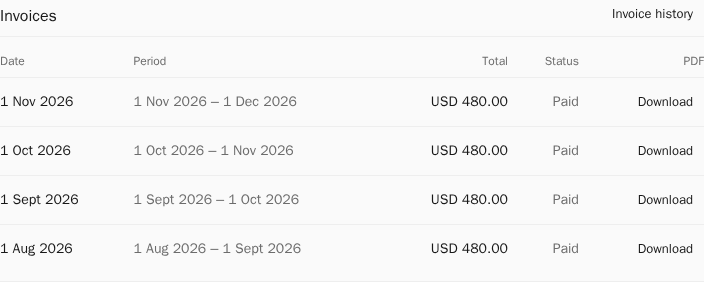
Select Download to start an invoice PDF download in a new tab. Find the file in your browser's downloads and open it to view or print it. Your Billing page stays open. Drafts show Not finalised until Stripe finalises them. See invoice downloads and recovery.
Owners and billing admins can also select Invoice history to open Stripe's secure portal for this account.
Ask about a record
If a section doesn't load, it says what didn't load. Select Try again. If your session ended, sign in again and check the account and organisation when you return. An error isn't an empty statement or a zero bill.
When you contact Matilda support, give the organisation name, the month or UTC date range, the statement month or invoice date, what the page said and the approximate time. Don't send card details, API keys or session tokens.
Keep your own copy of any financial document you need. How long records are kept, dispute deadlines and tax treatment are set by your terms, not by what's listed here.