Give organisation members a seat you've already paid for, or let directory groups give seats for you. People need a seat to chat as the organisation.
Before you start
Owners and seat admins can give seats. Billing admins can buy more seats but can't give them to people; they see the seat count and Add seats, without the seat controls.
Buying seats, and giving them to people, are separate steps. To buy more, see Choose and manage your plan. The person must have joined the organisation first.
Assign or change a manual seat
- Open Organisation settings from the account menu, then Members.
- Check Seats. It shows how many seats are assigned and available, by plan when you have both.
- Find the person under People, open their menu and choose Change seat.
- In Seat, choose Business Standard or Business Super. Each shows how many are available. You can't choose a plan that shows 0 available, and a plan you haven't paid for isn't listed.
- To give them their own daily limits, open Own limits and enter Messages a day or Token units a day. Leave them blank to use the plan's limits; 0 stops their included use.
- Select Save. The list shows their seat, and Seats updates.
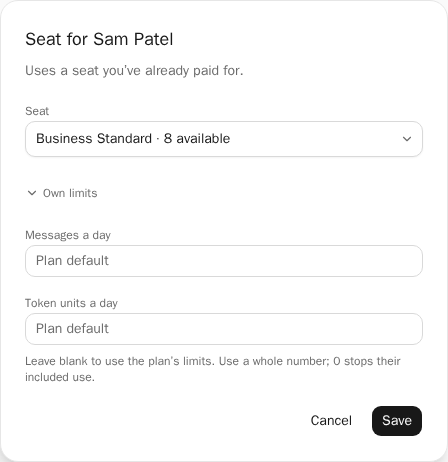
To take a seat back, choose No seat and save. They keep their membership and the seat goes back to the pool. This doesn't reduce the number of seats you pay for.
When people need attention, Members says so at the top of the page. For example, 1 person has lost a paid seat means the plan now has fewer seats than were assigned; add seats in Billing or change their seat. When someone has no seat and seats are free, Give a seat opens their seat dialog.
Manage directory-based seats
Once directory sync is working, a group can give everyone in it a seat. Owners and seat admins can change seats here; identity admins can see the groups and people but not change their seats.
- Open Directory sync and find the group under Groups.
- Select Set seat plan, or Change seat plan if it already has one.
- Choose the Seat plan and select Save.
- The confirmation says how many people are in the group and what happens to their seats. Select Change. People get the new plan while there's room, and anyone who doesn't fit loses the seat they had from a group. With No seat plan, people whose seat came from this group lose it. Either way, another group's plan gives them a seat only while there's room. Seats set manually don't change.
- Check the people under People. Their Seat shows the plan and whether it's from group or set manually.
If someone is in more than one group, Business Super wins. To make one person keep their seat whatever their groups, select Change seat next to them under People, choose Set manually and select Save. To hand their seat back to their groups, choose Follow their groups, select Save, then Change in the confirmation. Their current seat and own limits are removed, and they get a seat from their groups only if a group has a seat plan and there's room.
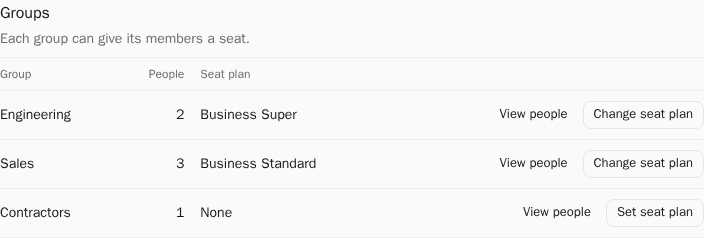
A group's people count can include people who haven't joined yet. A seat plan doesn't buy seats.
Check access as the member
Have the member sign in, open the account menu and choose the organisation under Chat as. Usage and limits in the same menu, or Usage in Settings, shows their allowance for that organisation.
A new page starts as Personal. Opening Organisation settings doesn't change who you chat as. A seat doesn't make anyone an administrator.
Resolve unavailable capacity or access
| What you see | What to do |
|---|---|
| No seats yet, or every seat is assigned | Ask an owner or billing admin to add seats. Owners and billing admins can select Add seats. |
| There are no free seats of that kind. Add seats in Billing, or choose another seat. | Choose the other seat type, or add seats first. |
| Lost paid seat next to someone | The plan has fewer seats than were assigned. Add seats, or change or remove someone's seat. |
| Paid seat access isn’t turned on | These seats don't give anyone access yet. Ask your Matilda contact. |
| Not joined yet in Directory sync | The person needs to accept their invitation with the same verified email before their seat works. |
| A group's seat plan differs from someone's seat | Check whether their seat is set manually, and whether there was room. |
| A message that seats changed and you should reopen the page | Open Members again, then change the seat. |
| We couldn’t confirm your last change | Check the list, then select Try again or Discard. Trying again won't apply it twice. |
| Access still blocked | Check the selected Chat as organisation, the person's membership and their seat. |
Lowering someone's limits doesn't undo usage already accepted. For limits on money spent, see Control purchases and extra usage spending.