Connect Microsoft Entra to Matilda's Directory sync so your directory adds and removes people and groups for you. Matilda uses SCIM for this.
Before you start
You need an active Matilda organisation with a business plan, a verified domain, and an owner or identity admin account. Seat admins can open Directory sync to manage seats for groups and people, but can't create tokens or see the setup instructions.
Set up single sign-on and an assigned pilot first, and keep an owner account that can still sign in. Single sign-on and directory sync must send the same work email.
In Microsoft Entra, use the enterprise application you use for Matilda, with permission to manage its provisioning. Microsoft's SCIM setup guide describes its own requirements. Group-based application assignment requires Entra ID P1 or P2. Start with one pilot user and one group.
Connect the application
- In Matilda, open Organisation settings from the account menu, then Directory sync under Identity. If you see Verify a domain first, select Verify a domain and finish that before you continue.
- Under Set up your identity provider, copy the SCIM base URL. Once you have an active token, these instructions are under Show setup instructions.
- In Microsoft Entra, open Enterprise applications, your Matilda application, then Provisioning, and choose Automatic. Paste the SCIM base URL into Tenant URL.
- Back in Matilda, select Create token. In Create a token, choose how long it lasts in Expires after (30 days, 90 days, 180 days or 1 year), then select Create token.
- In Save your token now, select Copy token, paste it into Microsoft's Secret Token field and save it somewhere secure. Then select I’ve saved it.
The token is shown once. Keep it out of screenshots, tickets and source control. If you select Close without saving, the token stays active but can't be shown again. Revoke the token marked Not saved under Tokens, select Dismiss, then create another.
A token works only while the person who created it is still an owner or identity admin. Create it from an account that's staying.
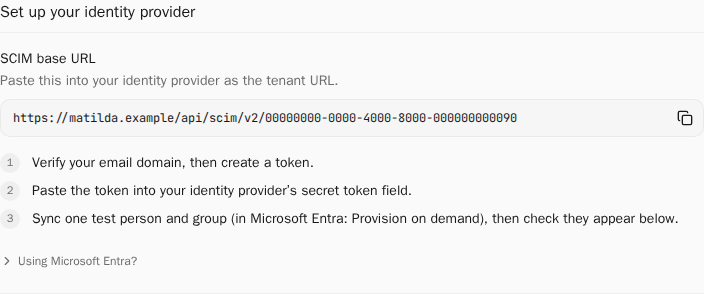
- In Microsoft, set the scope to Sync only assigned users and groups. Assign the pilot user and group to the application, and check the mappings below.
- Select Test Connection, save the settings, then test the saved connection again.
- Use Provision on demand for the pilot. Check the result in Microsoft's provisioning logs.
Microsoft's screens can change. Use its attribute-mapping guide to find the mapping settings.
Check the mappings
| Microsoft source | Matilda SCIM target | Purpose |
|---|---|---|
| objectId | User and Group externalId | Stable directory identity |
| The person's work email | userName and emails[type eq "work"].value | Same work address that single sign-on sends |
| Microsoft's lifecycle mapping | active | Adding and removing access |
| displayName, givenName, surname | displayName, name.givenName, name.familyName | Optional profile |
| Group displayName and members | Group displayName and members | Group name and membership |
Use userPrincipalName for the work email only if it's the address people actually use. A cloud-only account without a mailbox may have no mail value; other tenants may keep the work email in a different field.
Keep the lifecycle and group mappings. Delete the default mappings Matilda doesn't store: title, phone numbers, addresses, the other emails from proxyAddresses, and preferredLanguage. Matilda refuses an update that names one of them, and that fails the person's whole update. Microsoft Entra syncs about every 40 minutes once scheduled provisioning is on.
Verify the pilot before broad sync
- Check that the user and group exports succeeded in Microsoft. Test Connection only checks the URL and token.
- In Matilda, open Directory sync. The pilot group should appear under Groups and the pilot user under People.
- A new person shows Not joined yet until their first company sign-in, or until they accept their invitation with the same verified email. With Invitation only, they join only by accepting it. Then their status is Active. Check their role and seat separately.
- Have the pilot sign in with their work account and chat as the organisation.
- Turn on scheduled provisioning for this small scope and check its first completed cycle. Remove and restore the pilot's assignment to the app, and check Matilda each time: their status shows Removed in directory while they're removed.
- Disabling someone in Entra also removes their Matilda access, at Entra's next sync. Try it with the pilot. Some disabled or deleted users can't be found with on-demand provisioning, so a missing search result doesn't mean the person was removed in Matilda.
- Widen the scope only once these checks pass. On-demand success alone doesn't prove scheduled sync is running.
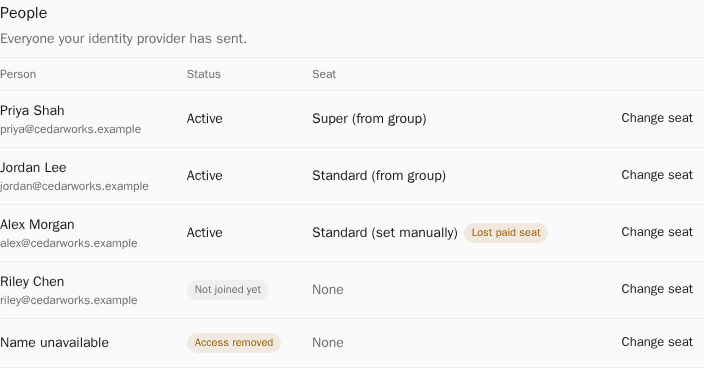
The screenshots use sample data. Use your own Microsoft object IDs, not the example values.
A directory group can't buy seats or give owner or billing roles. To let your directory decide who joins, set How people join to Synced from your directory on the Single sign-on page once sync works.
Use a directly assigned pilot group. Microsoft's on-demand provisioning guide describes its limits for small and nested groups. A new assignment can take a short time to appear in on-demand provisioning.
Recover connection or credential problems
| Problem | What to do |
|---|---|
| Microsoft's save fails or disconnects | Reopen the same application and test its saved connection before you replace a working token. |
| Test Connection passes, but exports fail | Check the failed export's status, reason and correlation ID in Microsoft. Fix the mappings before you change tokens. |
| Token created but not saved | The token can't be shown again. If you didn't save it, revoke the token marked Not saved, select Dismiss, then create another. |
| We couldn’t confirm your last change | Creating or revoking a token may already have gone through. Check Tokens, then select Try again or Discard. |
| Verify a domain before creating a token. | Verify a domain on the Organisation page first. |
| You’ve reached the token limit. Revoke any you no longer need. | Revoke tokens you no longer use, then create one. |
| A token shows Expires in a number of days, or Expired | Create a new token, update Microsoft, then revoke the old one. |
| A working connection stops | Check the token's status under Tokens, whether the person who created the token is still an owner or identity admin, the verified domain and the business plan. |
| A person is in the directory but can't chat | Check whether they've joined, whether their access was removed and whether they have a seat. |
To switch tokens without a gap, create a new token, paste it into Microsoft and test the saved connection, then select Revoke next to the old token under Tokens and confirm. Microsoft stops syncing with a revoked token, and you can't undo it. People already synced keep their access; use Remove or restore organisation access to remove someone.