Prove your organisation owns a work-email domain by adding a DNS TXT record. Single sign-on and directory sync need a verified domain.
Before you start
Owners and identity admins can add and verify domains. Other roles don't see the Domains section. You also need permission to add TXT records to the domain's DNS.
Use a domain your organisation controls. Microsoft's initial onmicrosoft.com domain doesn't give you control of Microsoft's DNS.
Verifying a domain doesn't turn on single sign-on, move personal accounts, buy seats or change who anyone chats as.
Get the current DNS instructions
- Open the account menu at the bottom of the chat sidebar, choose Organisation settings, and check the organisation name at the top of the sidebar.
- On the Organisation page, go to Domains and select Add domain.
- Enter the domain in Email domain, for example
example.com, without an email username or web address. - Select Get DNS record. The dialog changes to Add this DNS record and shows the record's Type (TXT), Name and Value, and when the record expires.
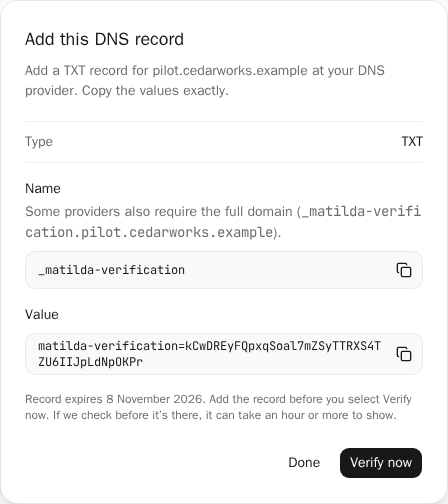
The domain is now listed with Waiting for DNS. To see its record again, open the domain's menu in the list and choose Show DNS record.
Add and verify the TXT record
- At your DNS provider, add a TXT record with Name
_matilda-verificationand Matilda's Value. Use the copy buttons to copy them exactly. - Check how your provider handles names. Some providers also require the full
domain (
_matilda-verification.example.com). - Keep your existing TXT records. Use the value Matilda shows you, not the one in a screenshot or a Microsoft verification value.
- Save the record at your DNS provider before you select Verify now. A check made before the record exists can make a correct record take an hour or more to show, because DNS servers remember that it was missing. Each DNS provider sets how long, so we can't give an exact time.
- Back in Matilda, select Verify now. If you closed the dialog, select Verify next to the domain in the list.
- The domain shows Verified with the date.
Then continue with single sign-on or directory sync.
Remove a domain
Removing a domain stops single sign-on or directory sync that uses it. People keep their accounts.
- Open the domain's menu in the list and choose Remove.
- Read the confirmation, then select Remove.
You can't remove a domain that single sign-on uses until single sign-on is turned off. If single sign-on is required for it, an owner needs to turn it off first.
If verification does not complete
| What you see | What to do |
|---|---|
| We can’t see a matching DNS record yet. Check the name and value with your DNS provider. If they’re right, keep the record and verify again later, as it can take an hour or more to show. Removing the domain won’t speed this up, and adding it again gives it a new value. | Check the public TXT name and value with your DNS administrator. If they're right, keep the record and come back later. A check made before the record exists can make a correct record take an hour or more to show, and each DNS provider sets how long, so we can't give an exact time. Then select Verify next to the domain. Don't remove and re-add the domain. That doesn't shorten the wait, and it gives you a new value to publish. |
| Record expired, or This DNS record expired. Get a new one. | Open the domain's menu and choose Get a new DNS record. Replace the old value at your DNS provider with the new one. |
| Enter a domain like example.com. | Enter only the domain, without https:// or an email username. |
| This domain can’t be verified for this organisation. | Check the spelling and that you're in the right organisation, then ask an owner or your Matilda support contact. |
| You can’t add more domains. | Remove a domain you no longer need. |
| We couldn’t confirm your last change | The change may already have gone through. Check the list, then select Try again or Discard. |
| Single sign-on uses this domain. Turn it off first. | Turn off single sign-on before you remove the domain. |
| No Domains section | Only owners and identity admins see it. Ask an owner to check your role. |