Manage credentials for your own tools and applications in Matilda’s web Settings.
Choose the key type
Sign in to your own account and open Settings → API keys. Keys belong to your personal account even when an organisation is selected. Organisation administration does not let you manage another member’s personal keys.
| Key type | Intended use | Current behaviour |
|---|---|---|
| Service — for applications | Applications you build for their own users | Shares your personal account’s plan and usage allowance; expires after 90 days |
| Personal — for your own use | Your scripts and tools | Uses your personal account permissions and allowance; keys created here have no automatic expiry |
The current limit is 20 active keys of each type per customer, with an additional 20-active-key limit for an individual service account. An unavailable list is not an empty key list.
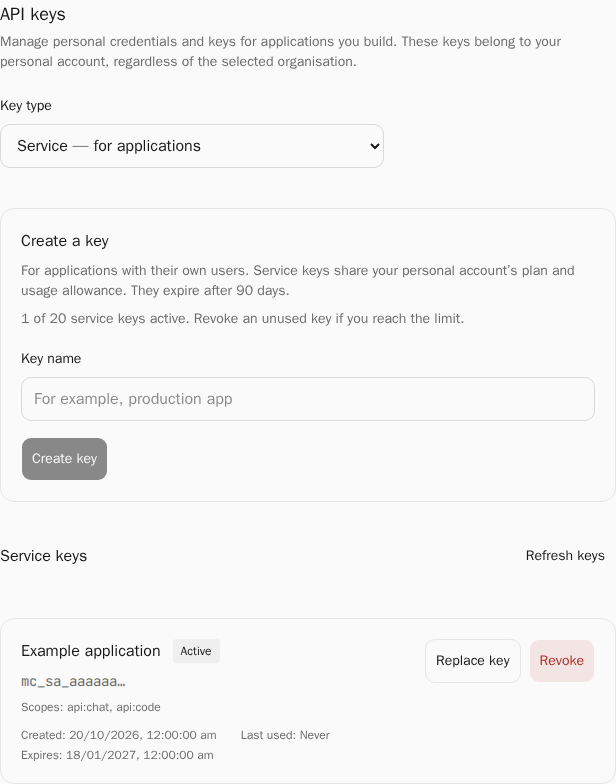
Create and save a key
- Choose Key type and wait for the current keys to load.
- Enter a descriptive Key name, then select Create key once.
- In Save your key now, use Copy API key, or select and copy the value if clipboard access is unavailable.
- Store it directly in your tool’s secure credential store or application secret manager.
- Select Done, stored it.
Keep the full value out of client-side code, source control, screenshots, logs and support messages. Leaving or hiding the page clears the one-time view. Save before switching tabs. The later list shows metadata, not the recoverable secret.
Replace a service key safely
- Find the active service key and select Replace key.
- Review the suggested name, then select Create key.
- Save the replacement secret and update your application’s secret manager.
- Verify the application is using the replacement before revoking the old key.
Replacement keeps the same service account. The original key stays active until you deliberately revoke it. Creating a new service key without Replace key creates a separate service account.
For a personal key, create another personal key, update your tool, verify it, then revoke the old one. These operations do not convert a key into an organisation credential.
Revoke a key
Revocation is permanent. Requests using that credential will fail.
- Select Revoke beside the intended active key.
- Check its name in the confirmation, then Revoke key.
- Refresh and verify its status is Revoked.
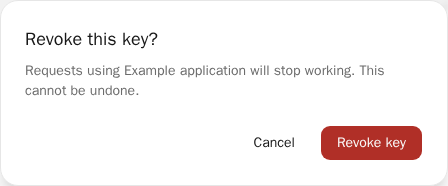
Revoking an old key does not revoke its separate replacement. Rotate any credential exposed outside its intended secure storage.
Recover a lost response
A failed creation response can follow a created key. Select Review keys to inspect current metadata before another change. Matilda does not automatically repeat creation on reload.
If the key exists but its one-time secret was lost, deliberately revoke that key and create a replacement. Metadata and retries cannot recover the full value.
For uncertain revocation, refresh and check its current status before deciding whether to revoke again. On session expiry, sign in again and review the saved action. On account change, reload and verify the original account. If the active-key limit is reached, revoke an unused key, verify the result, then create the intended replacement.
If browser storage or request protection is unavailable, use the shown recovery guidance; do not open repeated creation attempts to work around an uncertain result.