Apply promotional credit from Matilda to your invoices from the Billing page, and check how much is left.
Check what the credit covers
Promotional credit comes off your invoices. It isn't usage credit: it doesn't add to your usage credit balance, buy seats or give anyone access. To pay for usage after the included allowance, add usage credit instead.
Open your Settings → Billing page, or an organisation's Billing page. Promotional credit appears only while you have credit you can still use. Each credit shows what's left, its Total, how much is Used and the Apply by date.
Owners and billing admins can apply an organisation's credit. Billing viewers can see it but not Apply credit.
Matilda issues promotional credit; you can't create your own here. If credit you expected is missing, ask your Matilda contact to check the account it was issued to.
Apply credit
- On Billing, under Promotional credit, select Apply credit.
- If you have more than one credit, choose it under Credit. The one with the earliest Apply by date is chosen first.
- Check the Amount. It starts at what's left on the credit, or at what you owe now if that's less. You can't apply more than what's left.
- Select Apply credit.
- Check the confirmation, which names the amount and the credit, then select Apply.
The page says the amount was applied and that it comes off your invoices, and the amount left goes down. Check later invoices under Invoices on the same page.
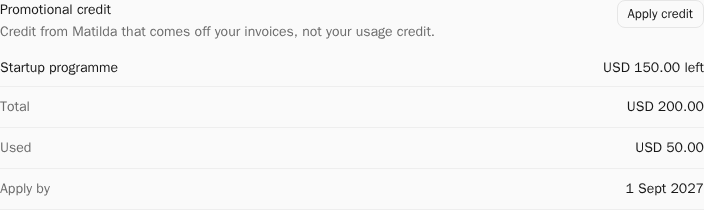
The amounts and dates are the actual terms on your account, not the example in the screenshot. Credit past its Apply by date, used up or withdrawn no longer appears.
If the result is uncertain
If the page says Matilda is checking this credit. You don’t need to apply it again., wait for the check. If it says your credit is still being applied, check again shortly.
If you see We couldn’t confirm your last change, the credit may already have been applied. Check what's left on the credit, then select Try again. Trying again sends the same request, so it can't apply the credit twice. If your role can no longer apply credit, the button is Check status instead. This notice stays until the result is confirmed.
This credit can’t be applied. It may be used up or no longer available. means nothing was applied. Applying credit isn’t turned on for your account. means your account can't use this yet; ask your Matilda contact.
If the credit is missing, expired or can't be applied under your role, contact the organisation owner or your Matilda contact. Keep passwords and payment details private.