Add prepaid usage credit from the Usage page, then check what's available and, where alerts are offered, get told when it runs low.
Before you start
Usage credit pays for usage after the included allowance runs out, up to your spending limits. It doesn't buy seats or give anyone access. Promotional credit is different: it comes off invoices.
Open the right Usage page:
- For an organisation, open the account menu, choose Organisation settings, then Usage. Owners, billing admins and billing viewers can open it.
- For yourself, open Settings → Usage while you chat as Personal. Your usage credit appears there once you have a personal billing account.
Owners and billing admins can add credit to an organisation. Billing viewers see the balance but not Add credit. An owner's Usage credit purchases limit on Billing decides whether credit can be bought and the most per purchase.
Add credit
- On Usage, select Add credit beside Usage credit.
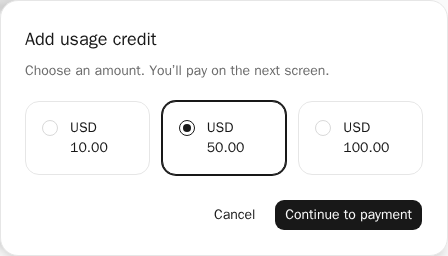
- In Add usage credit, choose an amount. The amounts are the ones offered for your account.
- Select Continue to payment. Cancel closes the dialog and starts nothing.
- Stripe's secure payment page opens. Check the credit amount, tax and total before paying. If Matilda first offers Pay on Stripe, select it to continue.
- Enter your payment details and confirm the payment on Stripe.
- Return to the same Usage page and check your balance. If payment is still being confirmed, wait and check again; don't start another purchase.
Card details go straight to Stripe, Matilda's payment processor. Credit is added as soon as the payment clears. If the checkout page shows a problem, see checkout problems.
If Add credit isn't there, check your role, the organisation's Usage credit purchases limit and whether a payment is already in progress.
Read your balance
Usage credit shows the amount available to spend. A pending amount beside it is held for replies that are still running, so it isn't final yet. How usage credit works explains that spending stops at your limits, which start again each month (UTC).
Below it, Spending limits shows Spent this month and the limits that apply. Statements for closed months are under Usage statements; see usage and billing records.
If the balance didn't load, you'll see We couldn’t load your usage credit. Select Try again. A balance that didn't load is unknown, not zero.
Use balance alerts
Balance alerts appears on Usage when alerts can be sent for your account. If you don't see it, alerts aren't available to you yet.
- Under Balance alerts, select Edit alerts. It appears only if your role can change alerts.
- Turn on Low balance alert and enter an amount in Alert below.
- Select Save. The confirmation lists what changes.
- Select Save alerts. Low balance alert now shows the amount.
An alert tells you; it doesn't buy credit. There's no automatic top-up.
If a payment or change didn't finish
If you left checkout before paying, Usage shows You have a payment in progress. Select Continue payment to go back to the same checkout. You won't be charged twice, and you can't start another payment until this one finishes or closes.
If Usage shows Your last payment needs a check, select Contact support before you add more credit.
If an alert change shows We couldn’t confirm your last change, it may already have gone through. Check what's shown, then select Try again to send the same change again, or Discard to clear it from this browser. Discarding doesn't undo a saved setting.
If you're asked to sign in again, select Sign in again. Signing in doesn't pay or save anything for you. Troubleshooting covers payments that don't show up.