Look after single sign-on once it's on: require or relax it, give roles from your identity provider's groups, change how people join, update signing certificates and recover a change that didn't finish. If SSO isn't on yet, start with Set up single sign-on.
Keep recovery access available
Owners and identity admins can open Single sign-on in Organisation settings. Only an owner can require SSO or make it optional, and only an owner can turn off SSO while it's required.
Before you require SSO, keep an owner account that can still sign in if your identity provider fails, ideally one whose email isn't on the domains SSO covers. Test that account's sign-in. A saved provider, a passed test and required SSO are separate stages.
Require or relax SSO
Requiring SSO means people on your verified domains must sign in with your identity provider, and their passwords stop working. Test a pilot member and your recovery owner first.
- Open Single sign-on and check the status line starts with On.
- Under Connection, select Test sign-in and run a test that passes. Requiring SSO needs a recent passed test of the current setup.
- Under Sign-in, turn on Require single sign-on.
- Read Require single sign-on?, which names the domains and provider, then select Require.
- Have a pilot member sign in with their work account.
If you see Run a test sign-in that passes, then try again., run step 2 again, then turn on Require single sign-on.
To relax it, turn off Require single sign-on and select Make optional in Make single sign-on optional?. People can then also sign in with a password.
Identity admins see Required or Optional in place of the switch.
Map group roles
Group roles gives people a role from the groups your identity provider sends. It appears once SSO is on. Groups can give Member, Seat admin or Identity admin; owner and billing roles can't be given this way, and a group role doesn't give a seat.
Each time someone signs in with SSO, their Member, Seat admin and Identity admin roles are set from their groups. This replaces any of those roles given on Members. A password sign-in doesn't change roles.
- Under Group roles, select Add group.
- Enter the Group exactly as your identity provider sends it, including capitals. Microsoft Entra sends the group's object ID; Okta sends its name.
- Choose the Role, then select Save.
- Check the group appears in the list. Have a member of that group sign in with SSO to check their role.
To change or remove a group, open its menu in the list and choose Edit or Remove. Removing a group asks you to confirm, and people in it keep the role until they next sign in with SSO. To take it away sooner, an owner can change their role on Members. You can add up to 200 groups.
For Microsoft Entra, send group object IDs in the groups claim. Okta sends group names in a group attribute, so add Okta groups by name. Seats for directory groups are set separately in Directory sync.
Change how members join
How people join shows the current setting and what it means.
- Choose a new option from the How people join list: Invitation only, Automatically at sign-in or Synced from your directory.
- Check what it does in Change how people join?, then select Change.
New sign-ins follow the new setting. This doesn't change your identity provider, require SSO or buy seats.
Change signing certificates
The Connection section shows when your signing certificate expires. A warning such as Expires in 30 days appears from 60 days before expiry, and Expired after it. Certificate details lists each certificate's expiry and fingerprint.
Change certificates with an overlap, so the current one keeps working while you switch:
- In your identity provider, add the new signing certificate next to the current one, and download metadata that contains both.
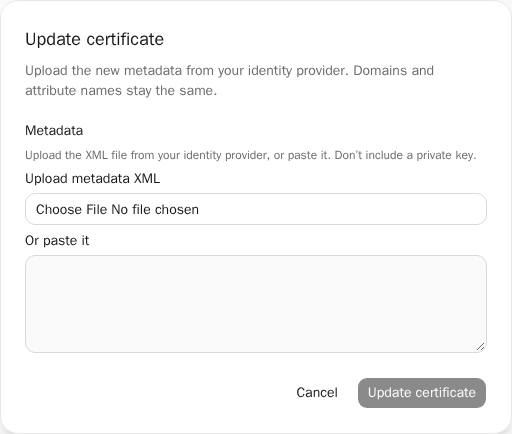
- In Matilda, under Connection, select Update certificate.
- Select Upload metadata XML and choose the file, or paste the XML into Or paste it. Domains and attribute names stay the same.
- Select Update certificate, then Update in Update the certificate?. Sign-in keeps working while both certificates are valid.
- Switch the active signing certificate in your identity provider.
- Select Test sign-in, then Start test, Open sign-in page and Check result. Continue when you see Test passed.
- Upload metadata without the old certificate, using Update certificate again.
Matilda accepts at most two signing certificates during a switch, and won't retire a certificate until a test with the current setup has passed. If a certificate update doesn't finish, the page shows Certificate update not finished. Sign-in keeps working with the current certificate; select Finish update to complete it.
If the only certificate has already expired, use your recovery owner, turn off SSO and set it up again, or contact your Matilda support contact before changing whether SSO is required.
Turn off single sign-on
- Under Connection, select Turn off.
- Read Turn off single sign-on?, then select Turn off.
People go back to signing in with a password. Nobody loses their membership or seat; to remove someone's access, use Remove or restore organisation access. If it doesn't finish, the page shows We couldn’t finish turning this off; select Try again.
Recover an interrupted or failed change
If a change was sent but no answer came back, the page shows We couldn’t confirm your last change and says what was being changed. It may already have gone through.
- Check what the page shows now.
- Select Try again to resend the same change. It won't be applied twice.
- Or select Discard to drop it. Discarding only clears it from this browser; if the change already went through, it stays.
If the page asks you to sign in, use Sign in again to finish this change, then try again. If your identity provider fails, use your tested recovery owner and keep MFA and tenant security on. When you contact support, give the message shown and the time with its time zone, and keep raw SAML responses and callback URLs private.